Password Manager
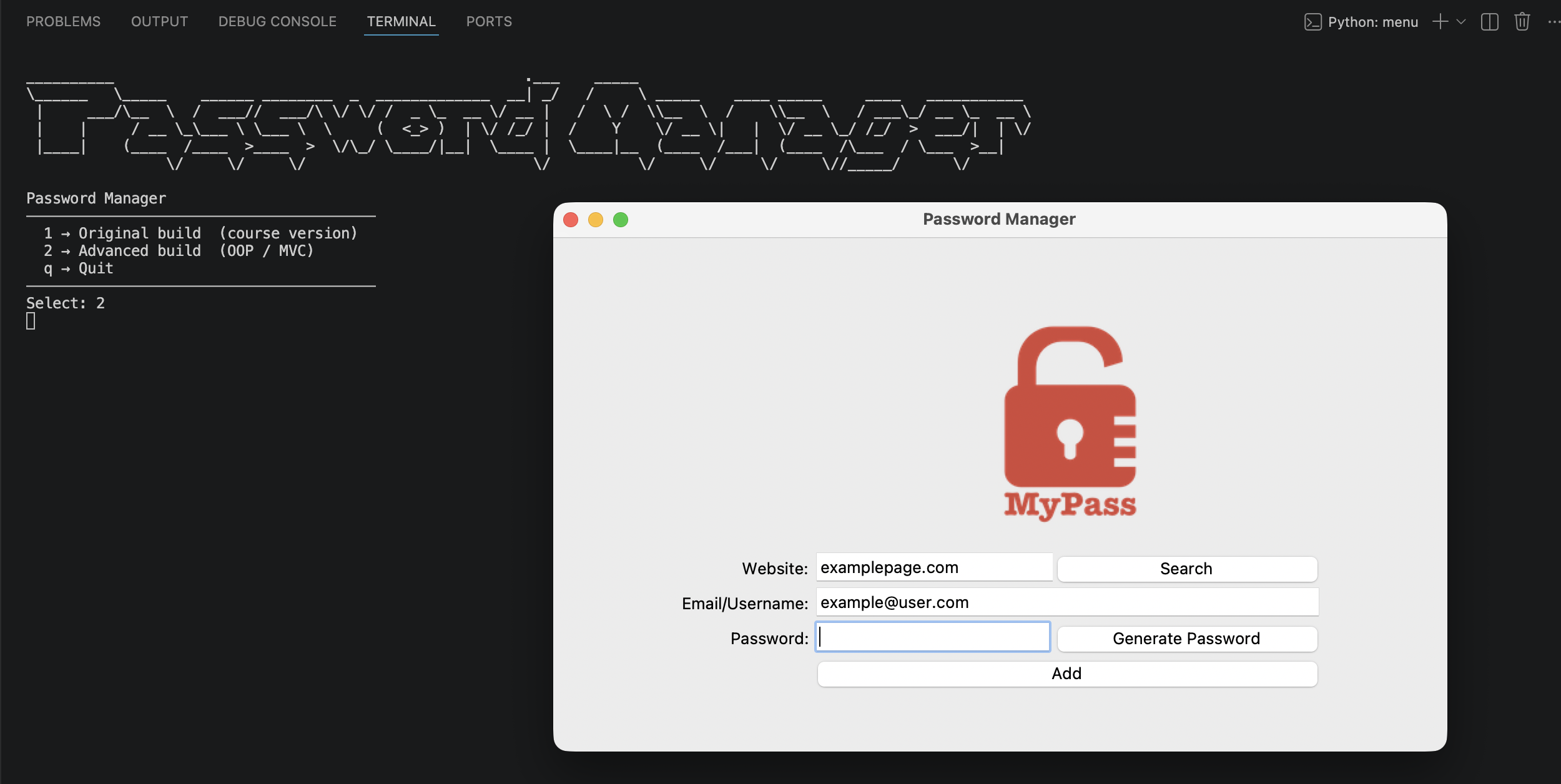
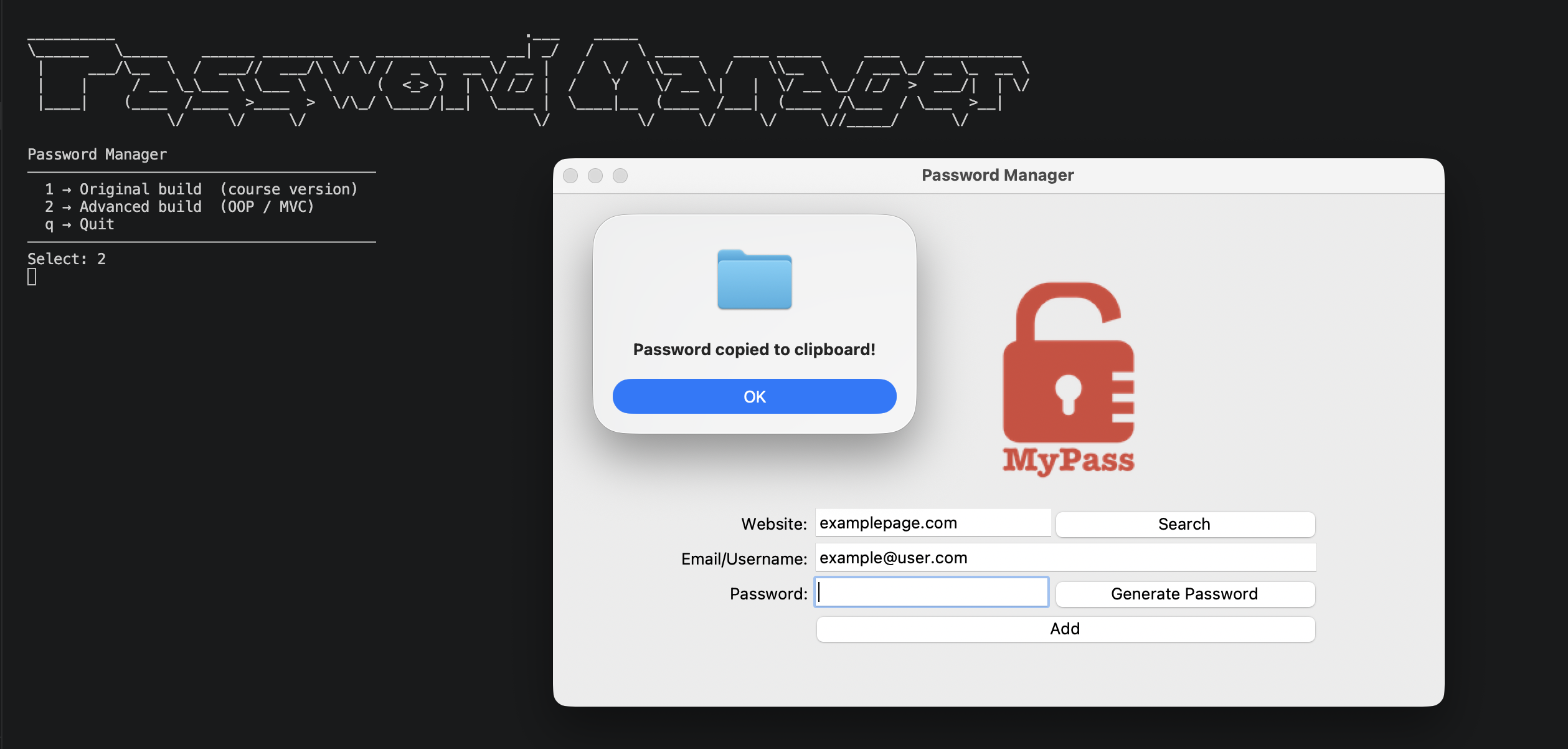
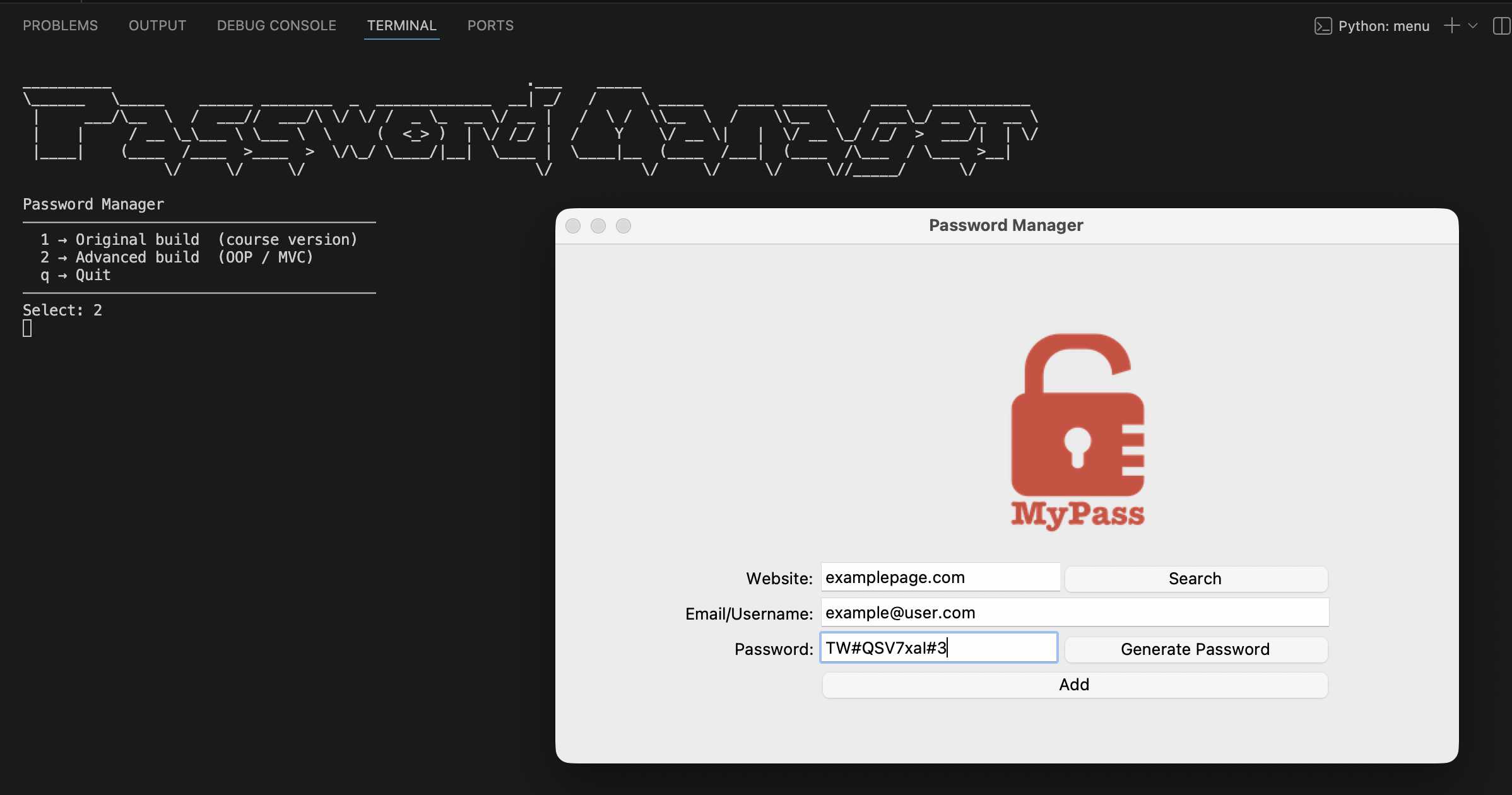
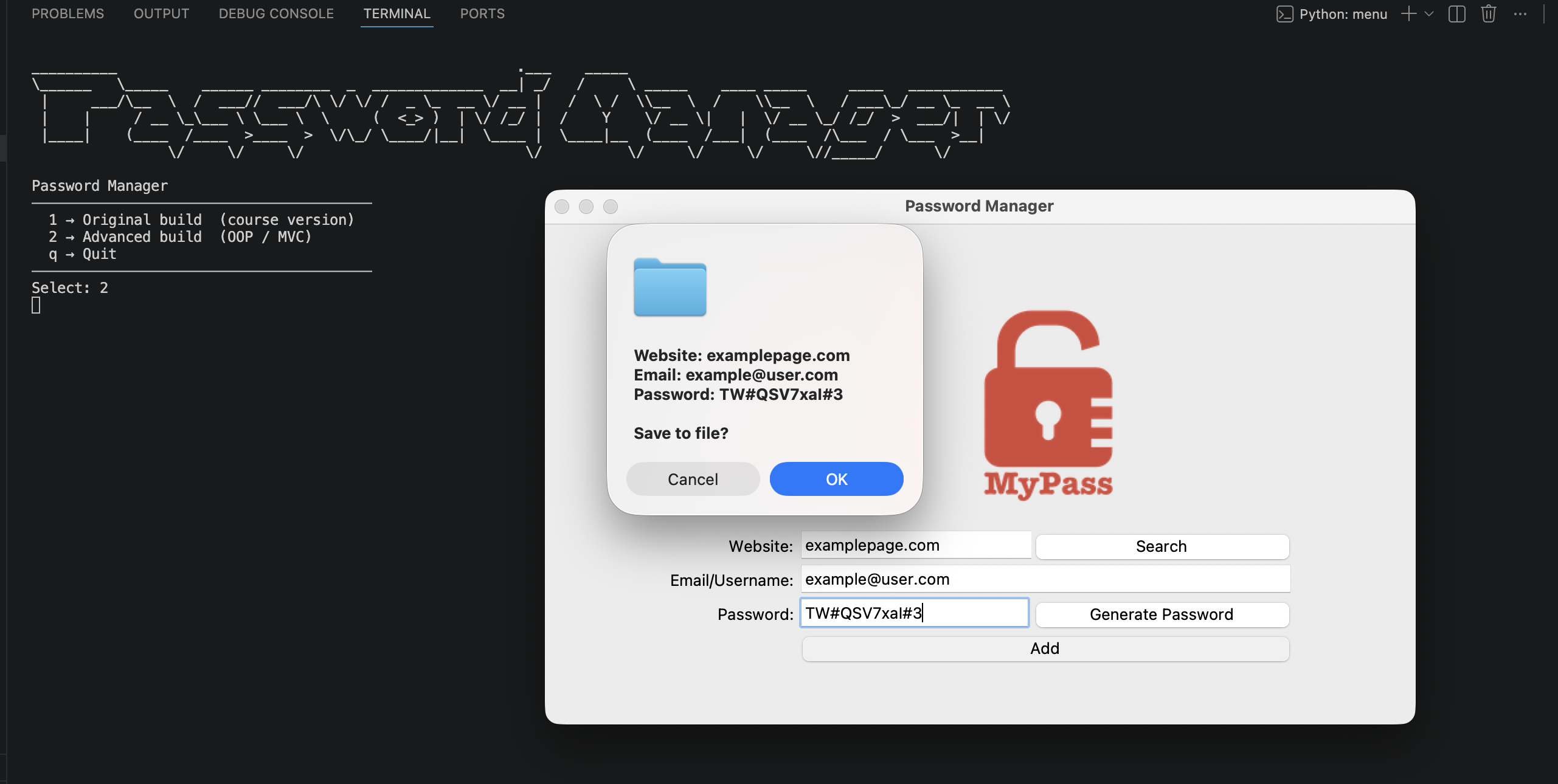
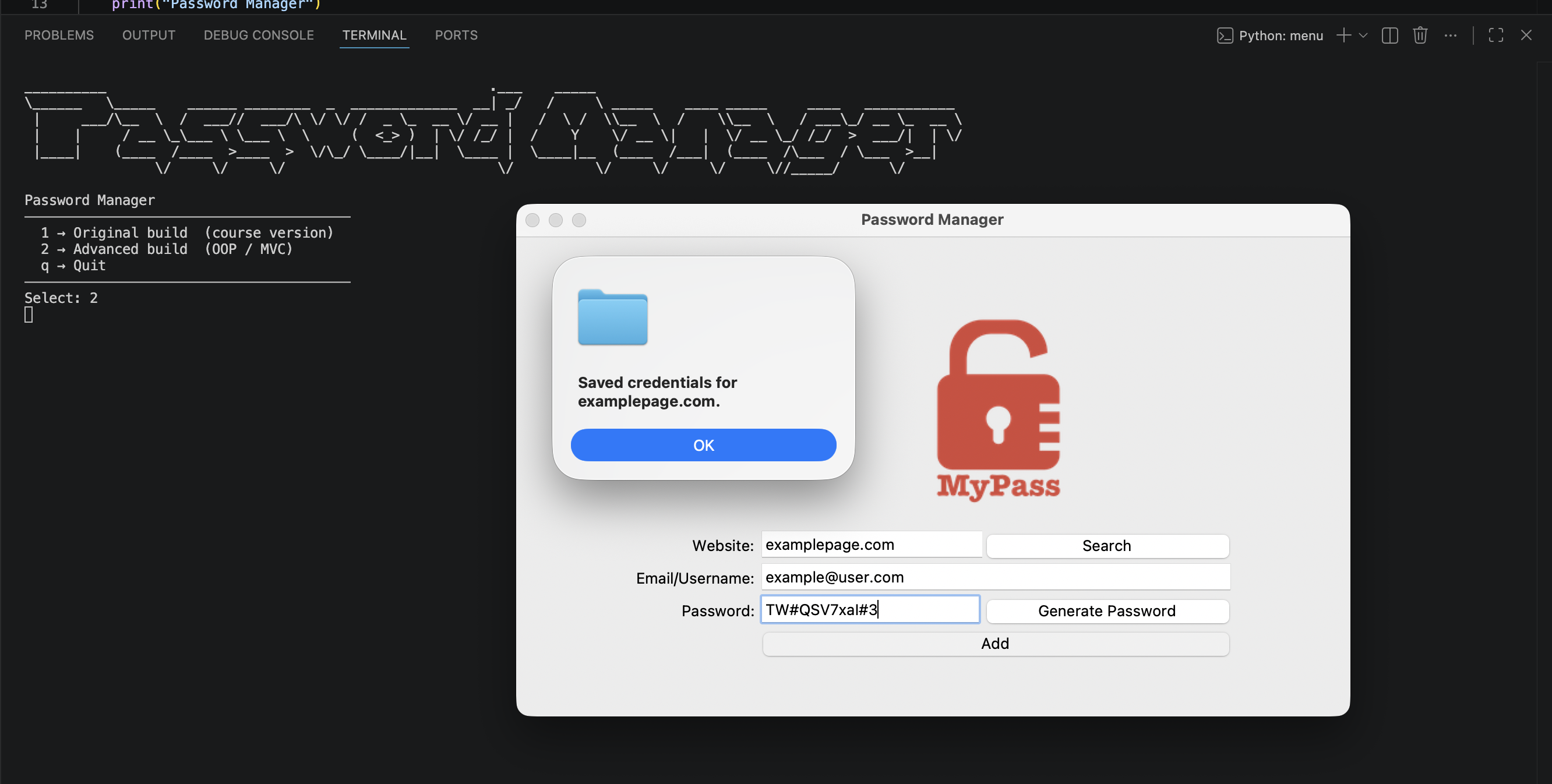
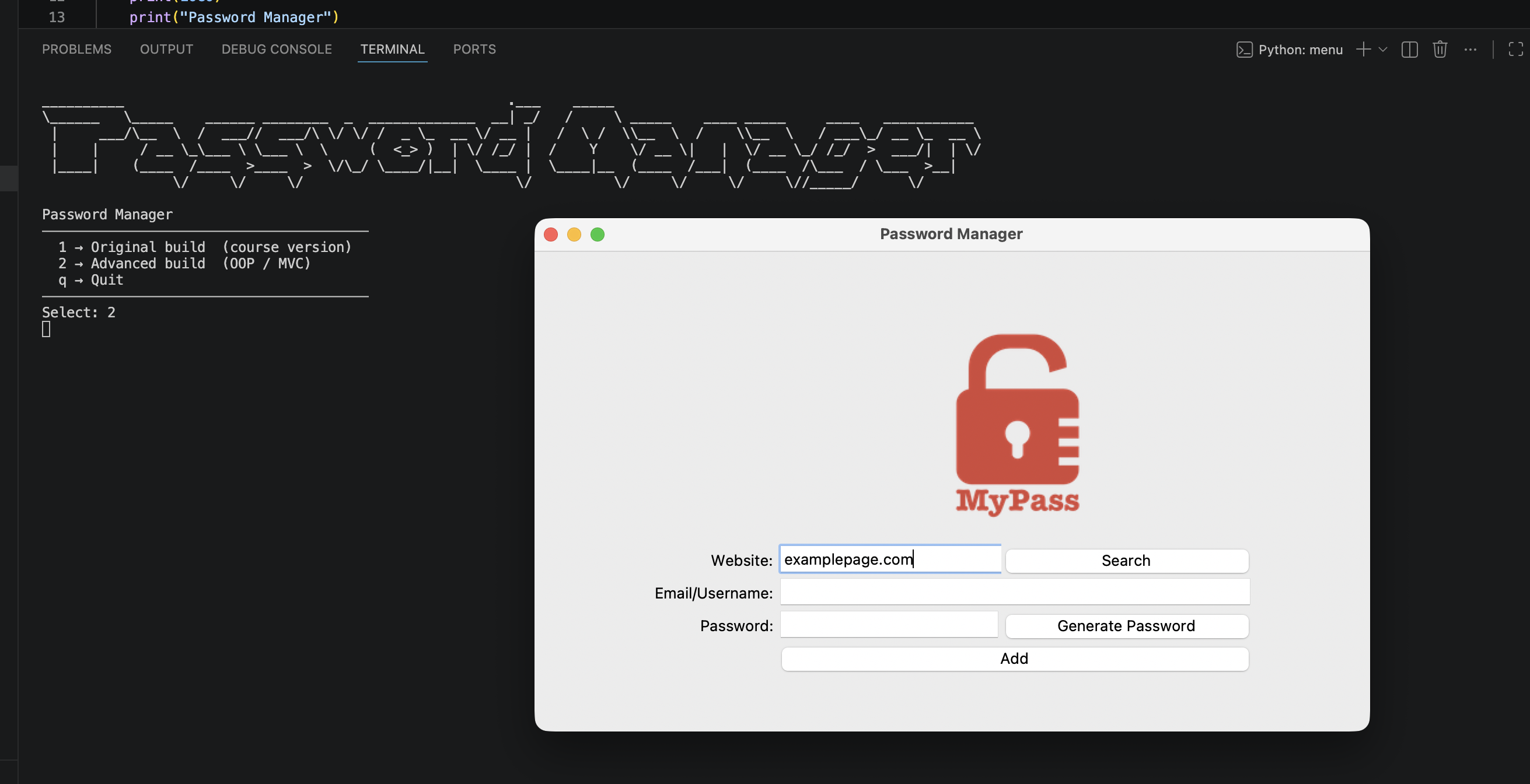
Password Manager is a desktop GUI app built with Python and tkinter that takes the pain out of creating and storing strong passwords. You type a website and email, hit Generate, and a shuffled mix of letters, symbols, and digits lands in the field and copies straight to your clipboard. Hit Add and it's saved to a local JSON file — no cloud, no account, no subscription. The project ships as two builds: the original procedural version from the course, and a refactored OOP/MVC advanced build that separates logic, display, and configuration into dedicated modules.
Overview
Problem
Registering on a new website and defaulting to a weak, reused password because generating something better feels like too much effort is a genuinely common failure mode. Browser autofill helps but it ties you to one machine and one browser. I wanted a dead-simple desktop tool that would generate a strong password on demand and persist it locally in a format I could read and search without installing anything. The secondary problem was more personal: the course version works, but everything is tangled together — the password generator reaches directly into the widget, the file paths are hardcoded, and there's no way to test any of the logic in isolation. That felt worth fixing.
Solution
The original build is a single procedural file — a tkinter window with three entry fields, a generator that randomly picks from letters, symbols, and digits and shuffles the result, and a JSON file as the datastore. The save flow reads the full JSON, merges the new entry, and writes it back, so no existing credential is ever overwritten accidentally. The advanced build splits this into three layers: PasswordManager handles all logic (generation, file read/write, search) with zero tkinter imports so it can be tested in isolation; Display owns every widget and accepts on_generate, on_save, and on_search callbacks injected at construction time; and app.py wires the two together and calls mainloop() once at the end. A config.py holds every constant — window padding, entry widths, generation ranges — so no magic numbers appear anywhere in the logic or display code.
Challenges
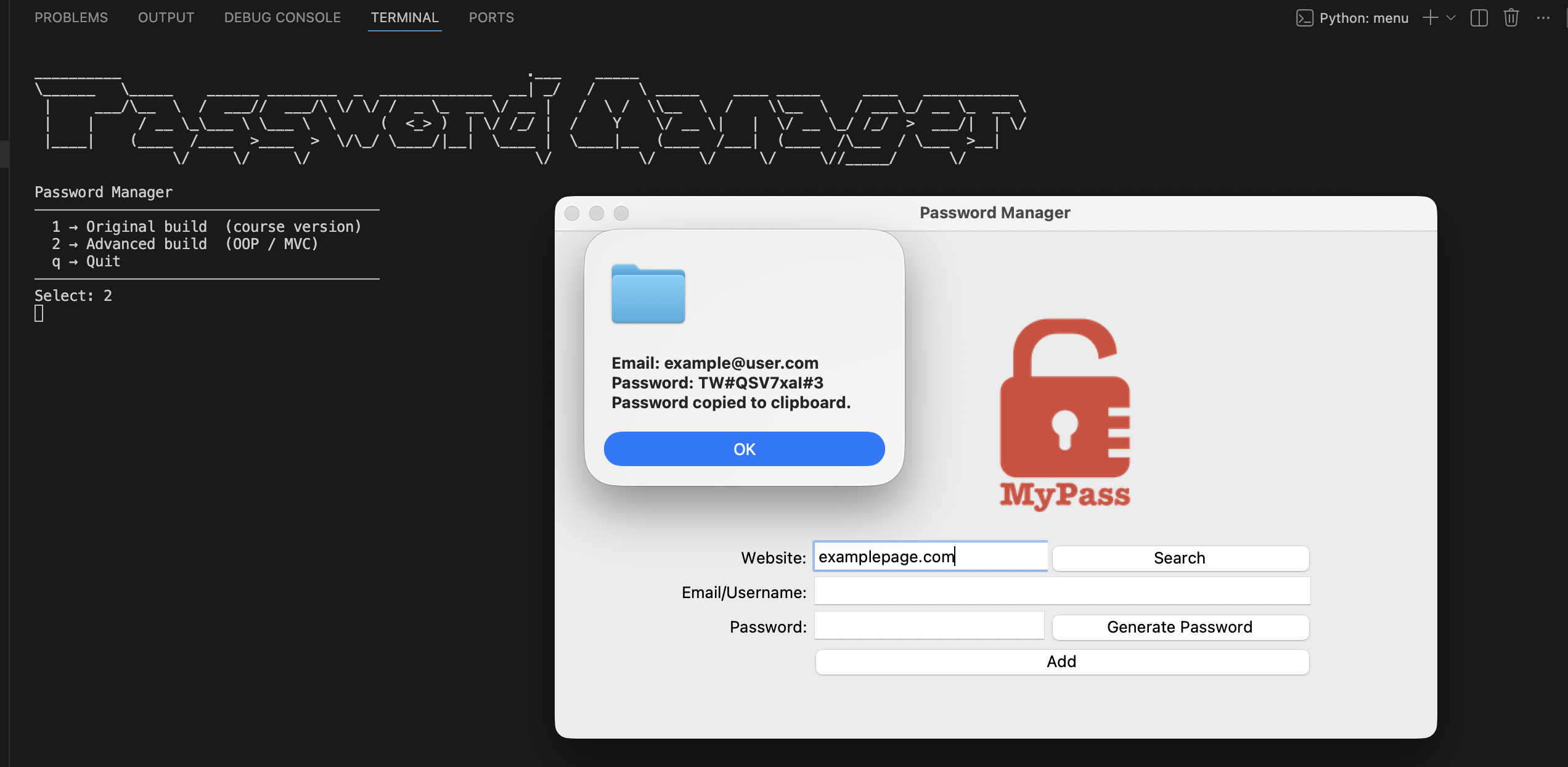
The trickiest design call in the advanced build was figuring out exactly where to draw the line between Display and app.py. My first instinct was to let Display handle the messagebox dialogs directly — it already owns the widgets, so it felt natural. But that would mean Display was making decisions (is the search result empty? should we warn?) instead of just rendering. The fix was to have Display expose thin wrappers like show_info and ask_ok_cancel, and let app.py call them based on what the logic returned. That way Display is genuinely passive — it never decides anything. A subtler edge case was the search distinguishing "the data file doesn't exist yet" from "the website isn't in the file" — both come back as falsy from the logic layer but need different error messages, so the orchestrator has to check them separately.
Results / Metrics
The biggest takeaway was how much cleaner event-driven GUI code becomes when you commit fully to callback injection. In the original build, generate_password() reaches directly into the widget to insert its result — tight coupling that makes it impossible to test the generation logic on its own. In the advanced build, PasswordManager.generate_password() just returns a string, which I could drop into a unit test in three lines. I'd probably add a delete-credential flow next, and maybe a show-all view if the app grew. Most practically, I now reach for named constants almost reflexively — PASSWORD_ENTRY_WIDTH communicates intent in a way that 20 never will.
Screenshots
Click to enlarge.
Click to enlarge.